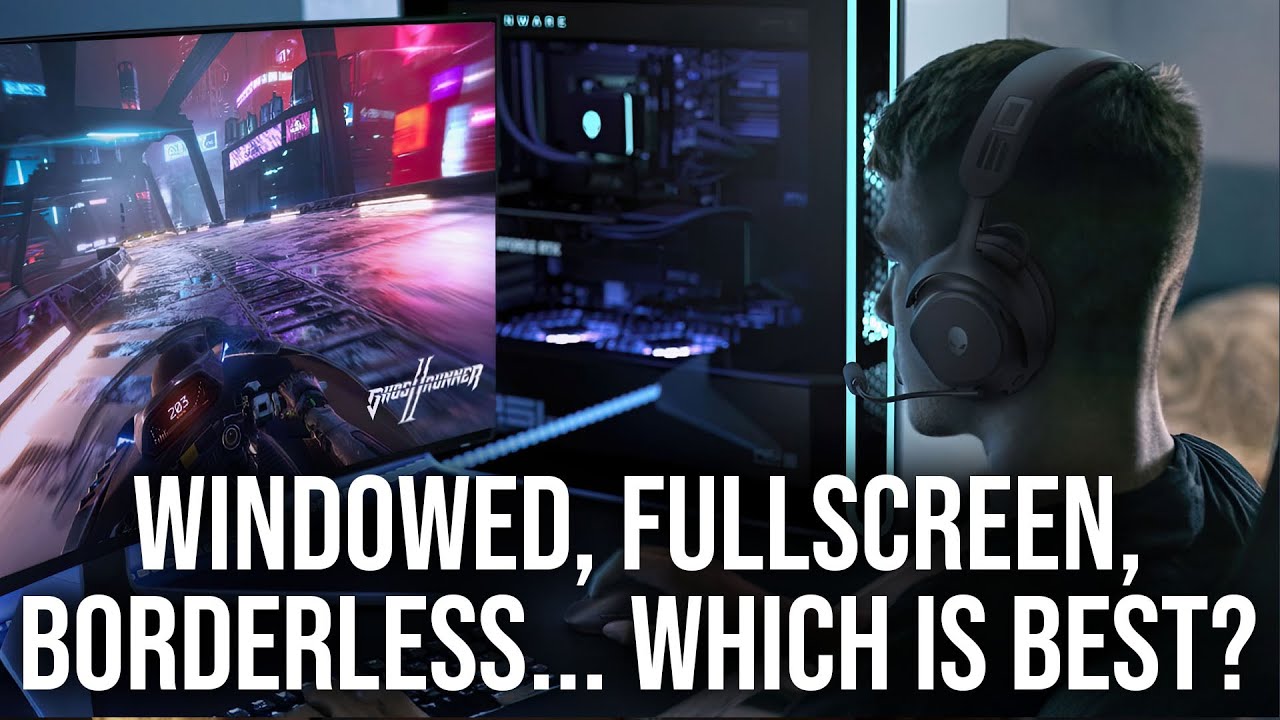
Watch the first 3 minutes.
P.S. Note stuff like Discord overlays (this is from laptop, I have overlays off):
A good summary but it’s also more complicated than that (just like how there’s more to direct storage than sending game data right to the GPU, yay marketing). This started with D3D9 in Windows Vista and WDDM graphics drivers. For backwards compatibility, fullscreen exclusive makes Windows emulate the old pre-vista GDI functions where a game will make a display mode change with a VRAM flush on startup and assume it’s lost it’s VRAM resources when loosing focus. It doesn’t actually lose those anything though as everything stays in VRAM as unmanaged resources.
Another thing to keep in mind in modern Windows context is Multi-Plane Overlays, which bypass the Windows Desktop Window Manager (DWM). This part is more annoying to explain so I’ll just copy the relevant info from the Windows MPO page and the SpecialK swapchain page:
MPO support allows graphics hardware to compose multiple layers of content into a single image that it can then display on a screen. It’s essentially a hardware-accelerated method of compositing different planes of content without having to involve the CPU or use up other system resources to do the blending in software. A plane can be a video, the desktop, an application window, and so on. The hardware can then take these planes and combine them into a single image that is sent to the display.
Multi-Plane Overlay (MPO)refers to the use of additional dedicated hardware scanout planes in the GPU that frames can be presented to, which the GPU then takes care of scanning out to the display itself, thereby allowing the GPU to shoulder the work (again achieving lower latencies) that the DWM would otherwise do but in software (which would incur an additional latency). Typically NVIDIA assigns all of the planes it supports (usually upwards of 4 of them) to a single display while the rest of the displays goes without any.
A display typically needs to be assigned at least 2 planes by the display driver for the feature to be regarded as supported on the display.
Worth noting for anyone on team red that AMD splits their MPOs between displays, and SK reported 3 planes per monitor on my 7900XT and my 9070XT. And this is fine, you shouldn’t be using a bunch of overlays all at once.
And yes, the Overlay part of MPO means game overlays, like the steam overlay or your GPU popups in the corner when starting a game. There was a lot of advice going around when Windows 8.1 came out and everyone started telling you to disable them with registry edits but for the most part they’ve improved a lot and you shouldn’t need to mess with that stuff.
If this sounds annoying and complicated it is, but SpecialK also has a good visualization for what you want to make sure a game will probably work fine.
Without MPOs you’re increasing latency by making the DWM composite everything to be sent to the monitor. There’s other ways this could go wrong of course, like letting a game window overlap two displays but as long as you leave FSO on and don’t mess with MPOs you should be fine. Of course it’s all even more complicated than that but man a lot of this stuff is not intuitive.
QFT.
SpecialK reports 3 total for AMD? I thought AMD was also 4 min but I’m probably confusiing it w/ nV.
Yeah, totally not my wheelhouse, but I did glean some good info (MPOs and more) from the SpecialK page and devs, including some illuminating Reddit posts I had shared in the past with some insight (from 2 years ago).
Some key takeaways:
Tl;Dr: The real PSA here should not be “Disable Fullscreen Optimization”, but rather upgrade to Windows 11 22H2 as soon as possible to reap the benefits of Multiplane Overlays and render Fullscreen COMPLETELY obsolete.
and some that garners lots of downvotes:
You also should no longer FORCE VSYNC policy in driver settings globally, because applications that never would have qualified for VSYNC OFF before MPOs were introduced are now eligible and will behave differently.
We, as in the SK team/community, generally do not recommend forcing V-Sync ON globally due to the issues it can result in in some games which ties their behaviour (e.g. loading) to their V-Sync toggle.
It’s safer to just rely on the game’s own V-Sync toggle.
Monster Hunter World, for example, would see prolonged loading times if V-Sync was turned OFF in the game itself but forced ON through the display drivers.
Not three total but three per monitor
Also not fun to deal with is stuff that can break MPOs, like 10bpc without HDR or custom scaling which you might want on a higher resolution display. I’ve even seen people talk about how 4K youtube can break it.
And then there’s the fun part of hoping the nvidia driver assigns all its MPOs to the correct monitor. Its not a guarentee your primary display will get them and even if you change which display is #1 a few times until the right one gets them it could change back next startup 
Oh I forgot to add:
Search for MPO
Does RTX HDR support multiple monitors?
Yes, multi-monitor support is now available. Please note:
Multiplane Overlay (MPO) support – MPO is automatically disabled when RTX Video Super Resolution or HDR are enabled.
RTX HDR is not supported with NVIDIA Surround or Clone Mode
When using multiple monitors in Extended mode with mixed displays (eg. 1 x HDR display + 1 x SDR display), RTX HDR will only work if it is launched on the active HDR display
Amazing. I wonder if it turns back on if they aren’t actively in use or if you gotta WIN+CTRL+SHIFT+B to reset your driver
Good Question and very specific stalky timing, I was JUST skimming through some old comments with tired eyes where driver restart was mentioned.
Old thread, but to anyone finding it while searching for MPO issues: In SDR, MPO support is limited to 8 bit. It gets disabled when you switch to 10 bit or higher. In HDR, 10 bit or higher does support MPOs. You can test this in real time using SpecialK/SKIF, for example. This is how it is at least on Windows 11 23H2 and NVIDIA’s 546.33 drivers.
I don’t know if this is an SDR- or Windows-specific limitation or if it’s simply not been implemented yet or whether it’s a wontfix issue or if it’s a legitimate bug.
This is probably something only @ManuelG can fully answer, but maybe @Astyanax could find something out, who knows.Note that, using NVIDIA color settings, this can be very annoying if your goal is to keep MPO support while constantly switching between SDR and HDR, as one is currently mostly supposed to do – only enable HDR, either native or through AutoHDR, for HDR content. The NVCP doesn’t have separate output color depth settings for SDR and HDR and one should certainly use 10 bit or higher for HDR.
The second layer of this issue is that if you use the default color settings in the NVCP, it does appear to correctly switch between 8 bit and 10 bit for SDR and HDR, but, one, selecting 12 bit is still not allowed and, two, switching back to SDR does not correctly restore MPO capability. You need to restart the display driver one more time after switching back to SDR in order to restore it. I invite everybody to test this while keeping SKIF’s SwapChain Presentation Monitor open (see Settings tab).You can switch quickly between SDR and HDR with the Windows key + Alt + B keyboard shortcut. To restart the display driver quickly, hit Ctrl + Shift + Windows key + B.
MPO support for 10/12 bit has recently been added to the Nvidia driver.
Anyway, it doesn’t work on Radeon at all with maximized window with title bar. And I honestly don’t see why it should, because who plays games that way.
I’ll have to re-read that tomorrow after coffee as my brain will likely forget everything in its sleep-deprived state, yay for follow-up bookmarks.
But any insight you or anyone else has to share is most welcome (again, not really my wheelhouse)!
P.S. Note the date on some comments, things may change over time OFC.
Wish I could offer more but finding bits and pieces of documentation scattered through forums and different Microsoft docs kinda sucks and is made worse by google results just churning out SEO spam for more advertising money
You know it’s weird, I’ve actually seen people do that online with or without taskbar in view too…like why!?
One last thing to try that may or may not help but anecdotally helps for me is opening and closing Windows game bar before starting Darktide. It will turn itself on and off in task manager based on if you’re playing a game or not but it doesn’t actually stay open in the background when not gaming unless you do that.
Supposedly (because my only sources are youtubers and Reddit and I can’t find a damn thing that’s official) it helps with CPU task scheduling. I hear it mentioned when talking about dual CCD Ryzen CPUs with 3D v-cache (so the 7900X3D, 7950X3D and 9000 series equivalents) where game bar is supposed to keep a game on the CCD with the extra cache but it’s also supposedly supposed to help with CPU scheduling on regular CPUs too.
My best guess for why this works is the game bar gets tripped up by the Darktide launcher and can’t detect what game is open and schedule accordingly unless it’s already open in the background but for all I know this is nonsense and a placebo.
What’s not nonsense is the game dropping VRR briefly when using the baked in global illumination but not when I use RTGI. All it takes it setting a frame cap lower than my monitor’s refresh rate and opening the monitors OSD to watch 60fps briefly jump back up to 144 and then back down to the 60 cap I set. Only a theory for why this happens but maybe because VRR requires sync interval set to 0 but isn’t configured for that properly or maybe the baked in GI uses dx11 assets which either screws with the flip model or gets caught up in the steam overlay’s D3D11on12 nonsense. Emprah forbid Valve makes a native DX12 overlay instead of using a translation layer always eating a bit of CPU resources.
Huh, interesting.
Couldn’t you just set core(s) affinity to the 3d CCD (taskman, script, ProcessLaso etc.) to be sure? Is that even needed?
A very quick google skimming (*see corrections in replied top comment on Reddit below):
Unlike the method used by Windows Game Bar, which completely disables the second CCD without extra cache, this BIOS setting keeps the second CCD active. This is beneficial because background applications such as streaming services (OBS Studio, Discord, etc.) can run on the secondary CCD, reducing competition for resources on the cache-optimized CCD.
Ed: and a quick skim of the linked vid, time indexed coincidentally mentioning ProcessLasso too (and not using it) and a summary.
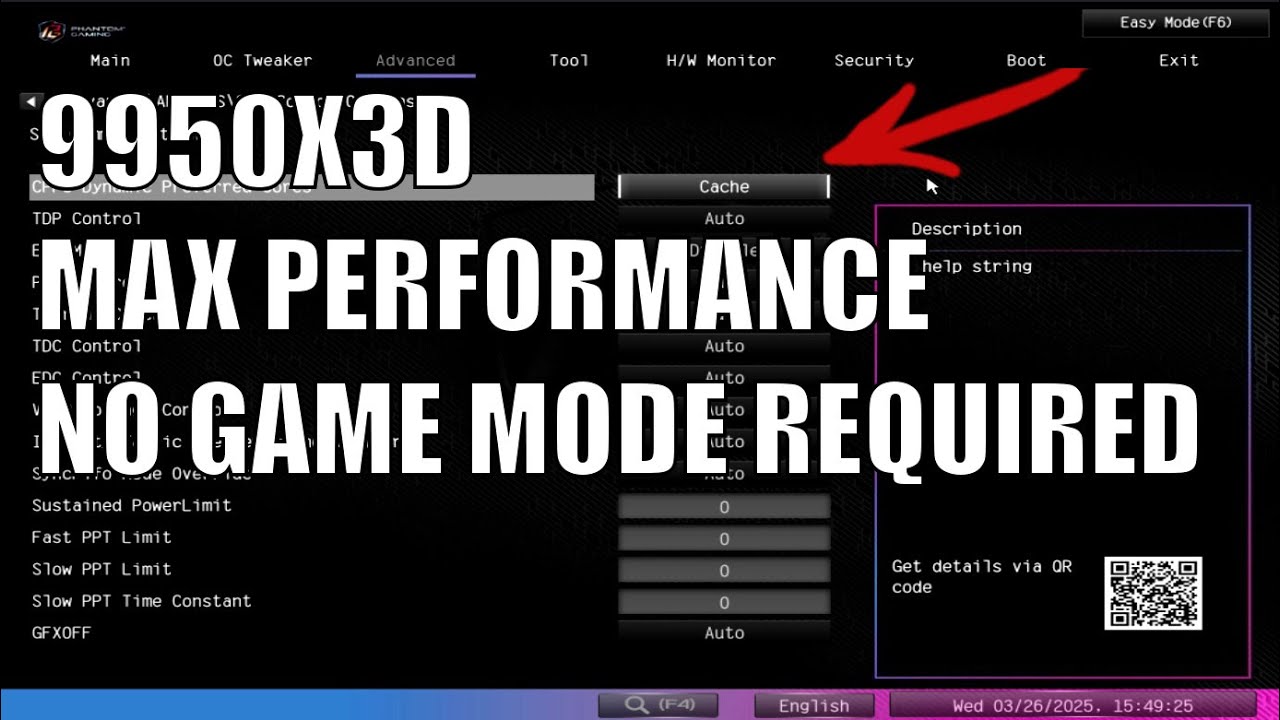
Ed2: but also see corrections and clarifications in 1st top comment (RIP Gordo!)
This is not accurate.
The Game Bar process list will divert games or applications that are known to benefit from the higher cache CCD (or user specified programs, via overlay checkbox) whenever they are active and in the foreground. Under a balanced power plan, inactive cores can be parked, but if the game, application or other background applications spawn too many threads, they will unpark and activate without further user action.
Under a high performance power plan, processes are diverted as needed, but core parking is disabled. In either case, Game Bar cannot and does not disable a second CCD. This is very easily tested by simply running something in the background that occupies a known quantity of threads. It’s not mysterious.
Folks like the late, great Gordon Mah Ung with PC World had been trying to explain it gently for a few years at this point, without much success. This video shows him demonstrating various scenarios with Resource Monitor open in a second display, so you can see cores park, unpark and shift CCD depending on task, load and foreground/background presence.

If only this was more built in to Windows but this is the same company that coded part of the start menu in React, meaning a jump in CPU use for the sake of ads and other widgets. Plus Microsoft and Intel have always been buddy buddy so they get priority even if their CPUs run hotter with less performance. I hear Linux can just do stuff like this automatically so I’m tempted to try it even without an X3D CPU.
Very interesting tangent to bring up re: dual CCD Ryzen X3D models though, I hope some people skimming may drive-by see it, thanks!
I should have known, good to mention regardless!
P.S. A reminder darktide.exe inherits affinity from launcher, back when EAC (anti-cheat) was a thing this was a workaround and may be handy for other games.
Yep, and the sounds like nonsense but might not be advice of keep the game off core 0 so windows tasks that defaulted to it don’t have to fight for resources.
Huh, I hadn’t thought of that in a long time, I’ll try that, what’s the worst that can happen.


